Bank Account Configuration Settings
Lunch Flow automatically derives account names and transaction data from your bank, but you can fine-tune everything to ensure accuracy across different banking sources.
Account names
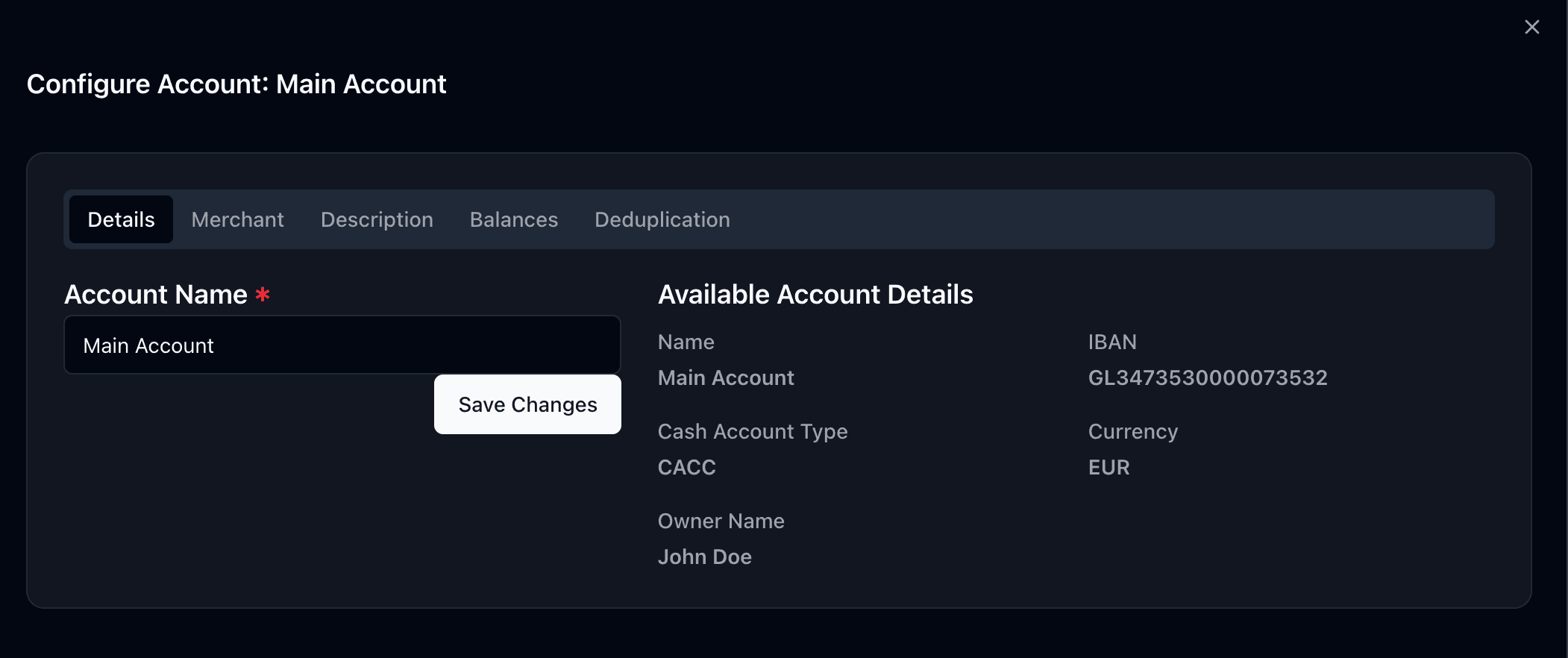
Lunch Flow automatically derives account names from your banking details. You can manually edit the name at any time from the account settings.
Transaction descriptions & merchant names
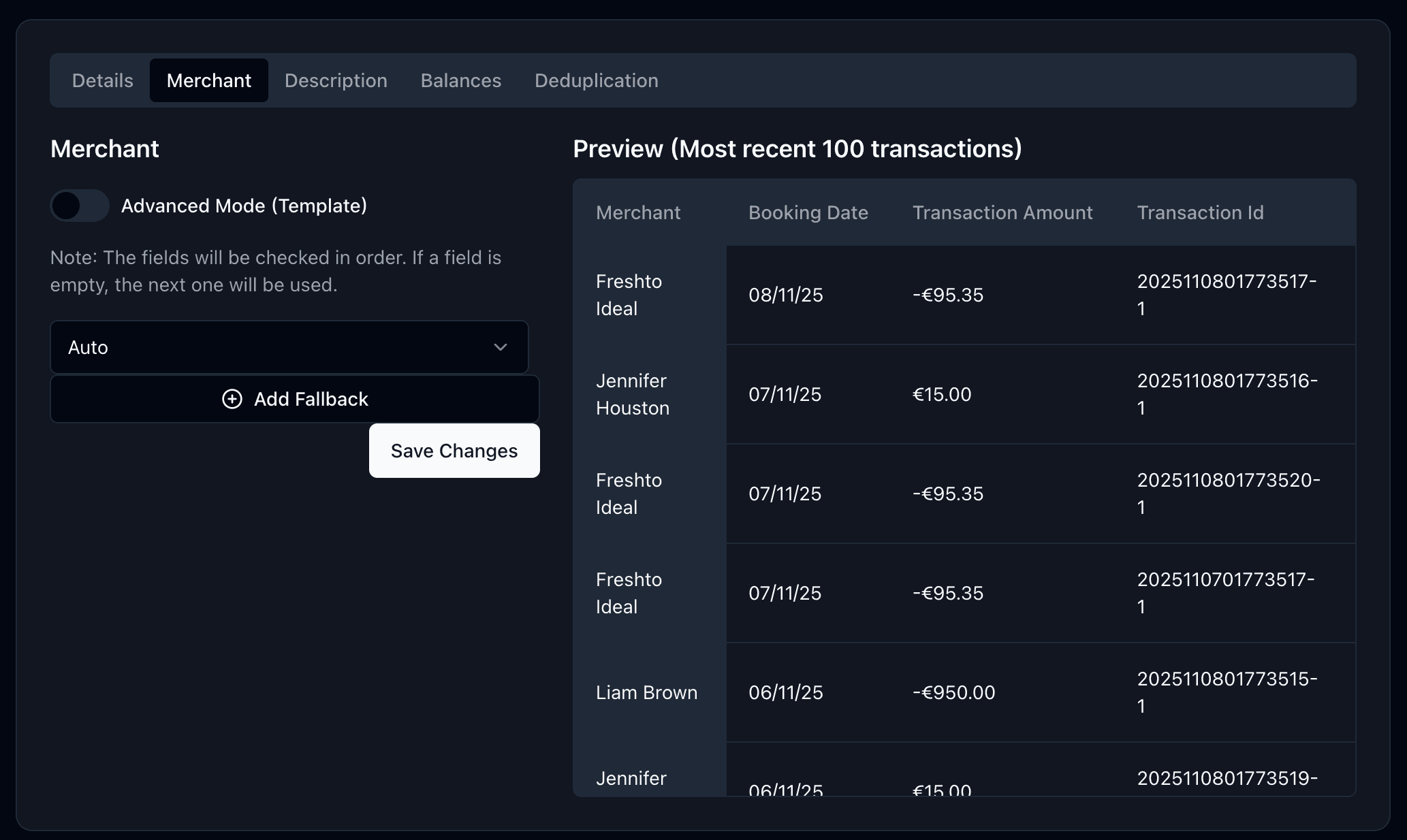
Different banks format transaction data differently. Lunch Flow offers three modes:
- Auto: The system intelligently infers descriptions and merchant names
- Manual: You choose which fields to use
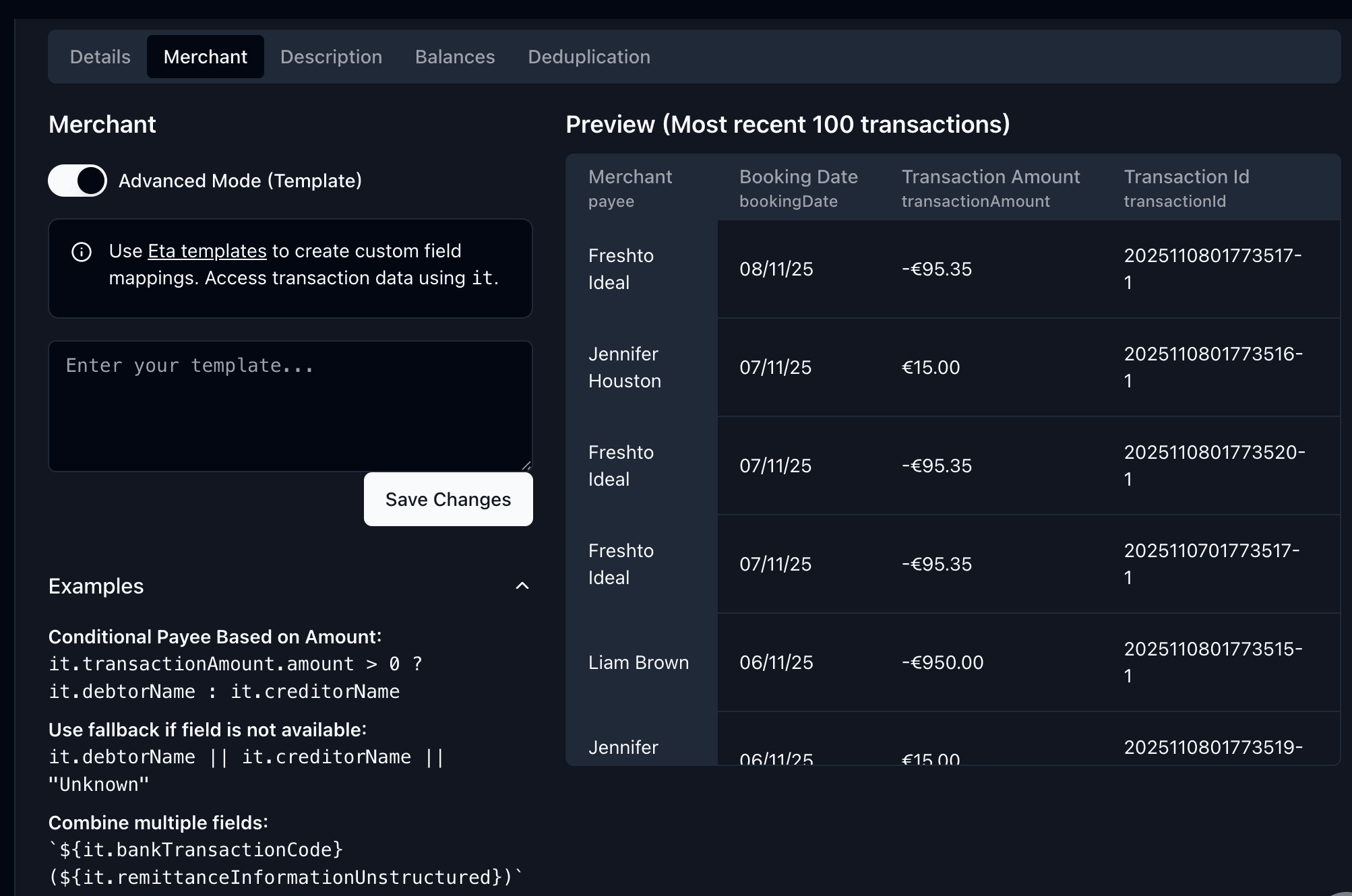
- Advanced (template mode): Write custom templates using the Eta templating language, with a live preview of the result
You can use ChatGPT to auto-generate an Eta template by describing your bank's transaction format.
Balances
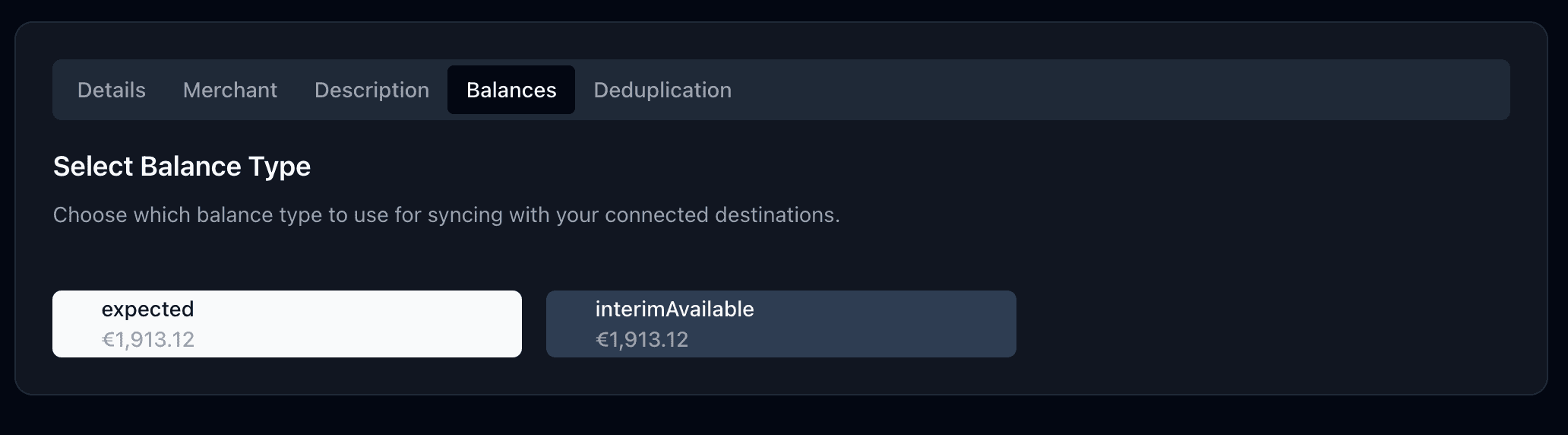
Banking providers can return multiple balance types. You can configure which balance Lunch Flow syncs to your destinations. Advanced formula mode lets you write custom calculations using variables like it.amount, it.currency, and it.balances.
Formula examples:
-it.amount                                                    # Negate
it.amount + 1000                                              # Offset
it.amount / 100                                               # Scale
it.balances.find(b => b.type === "closingAvailable")?.amount ?? it.amount  # Specific type
Currency & amounts
- Override Currency: Force a specific currency when your bank reports it incorrectly (applies to all transactions)
- Override Balance Currency: Same override for the account balance only
- Reverse Amounts: Flip transaction signs if your bank reports them inverted
A preview table shows original vs. post-sync amounts.
Manual sync mode
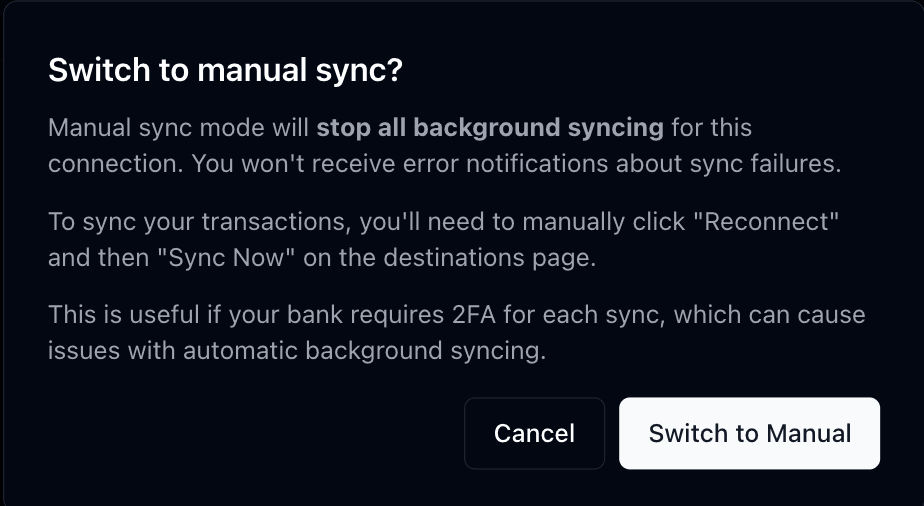
Pauses background syncing entirely. You must manually reconnect and trigger syncs. Useful for accounts that require two-factor authentication on each sync.
FAQ
How is this guide?