Model Context Protocol (MCP)
The Model Context Protocol (MCP) is an open standard that lets AI assistants like Claude access external data sources. The Lunch Flow MCP server lets you query your financial data through natural language.
Prerequisites
- An active Lunch Flow account with at least one connected bank. If you have not connected a bank yet, follow the QuickStart guide first.
- An MCP-compatible client: Claude Desktop, Claude Code, Cursor, Windsurf, or any client that supports a remote MCP server.
Set up your client
Your dashboard shows these same steps, ready to copy, on the Destinations page. Pick the tab for your client and follow the steps below.
The Lunch Flow MCP server is hosted at https://www.lunchflow.app/api/mcp/sse. It uses OAuth, so you sign in with your Lunch Flow account the first time you connect. You never paste an API key, and your assistant gets read-only access.
Open the connector settings
In Claude Desktop, go to Customize → Connectors → Add custom connector.
Add the server URL
Paste the Lunch Flow server URL and save:
https://www.lunchflow.app/api/mcp/sseSign in
Claude Desktop prompts you to sign in with your Lunch Flow account. Approve the connection to finish.
Add the server
Run this command in your terminal:
claude mcp add --transport sse lunchflow https://www.lunchflow.app/api/mcp/sseSign in
The first time you use a Lunch Flow tool, Claude Code opens the OAuth sign-in flow. Approve the connection to finish.
Add the server
Open Cursor Settings → MCP and add the Lunch Flow server. Use this configuration:
{
  "mcpServers": {
    "lunchflow": {
      "type": "sse",
      "url": "https://www.lunchflow.app/api/mcp/sse"
    }
  }
}
Sign in
Cursor prompts you to sign in with your Lunch Flow account the first time it calls a Lunch Flow tool. Approve the connection to finish.
Add the server
Add the following to your Windsurf MCP configuration:
{
  "mcpServers": {
    "lunchflow": {
      "type": "sse",
      "url": "https://www.lunchflow.app/api/mcp/sse"
    }
  }
}
Sign in
Windsurf prompts you to sign in with your Lunch Flow account the first time it calls a Lunch Flow tool. Approve the connection to finish.
For clients that do not support a remote SSE server natively, use mcp-remote as a bridge. It handles the OAuth sign-in for you and needs no install, because it runs through npx.
Add this to your client's MCP configuration:
{
  "mcpServers": {
    "lunchflow": {
      "command": "npx",
      "args": ["mcp-remote", "https://www.lunchflow.app/api/mcp/sse"]
    }
  }
}
The first time your client starts the server, mcp-remote opens a browser window to sign in with your Lunch Flow account.
Verify the connection
Ask your assistant a question that uses a Lunch Flow tool, for example:
What accounts do I have connected in Lunch Flow?
Your assistant calls lunchflow_list_accounts and returns your connected accounts with their institution, currency, and status. If you see your accounts listed, the connection works.
Available tools
| Tool | Description |
|---|---|
lunchflow_list_accounts | Lists all connected bank accounts with institution, currency, and status |
lunchflow_get_account_transactions | Retrieves transaction history with dates, amounts, merchants, and categories |
lunchflow_get_account_balance | Returns current and available balances for a specific account |
lunchflow_get_account_holdings | Returns investment holdings for a specific account |
What you can do
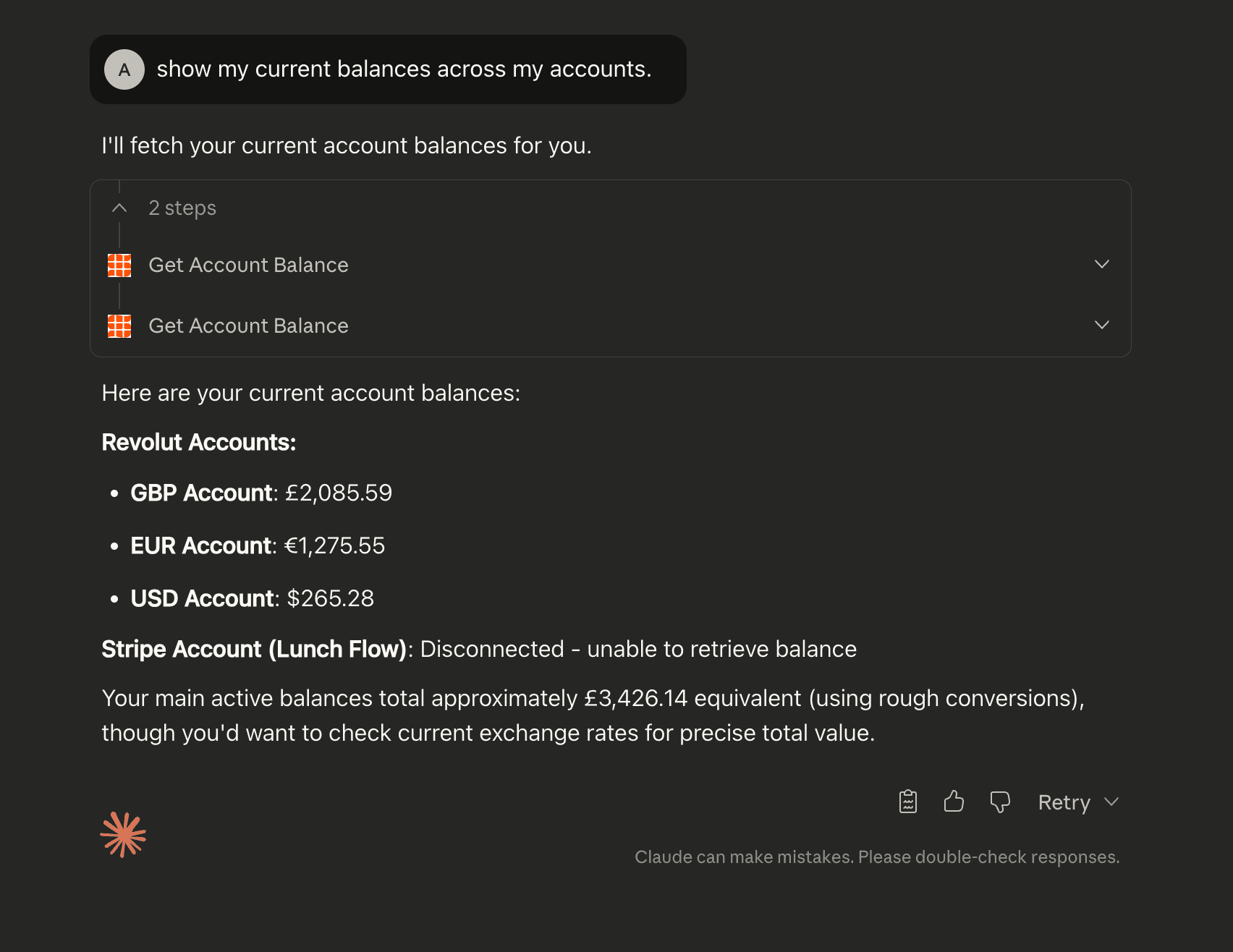
- Analyze spending patterns across accounts
- Get a natural-language summary of your finances
- Categorize and reconcile expenses
- Ask questions like "How much did I spend on food last month?"
Security
- Read-only access: the MCP server cannot move money or modify accounts
- Open-source code
- Encrypted authentication: your banking credentials are never stored
- Only the specific data needed to answer your question is sent to the AI
When you ask a question, Claude processes the data temporarily. Banking details are not permanently retained.
Troubleshooting
Related
How is this guide?